
Sidebar
Table of Contents
Embedding Frigate in a Web App Using a Reverse Proxy + Subdirectory
Background
My custom home automation system started with very basic camera capabilities. Originally, the daxCamera module was configured per camera, and I provided credentials so it could fetch a “snapshot” image for each one. The module would poll each camera every second and store the image in a cache. The web interface could then display those images as a grid, with the option to click one for a larger, full-screen version.
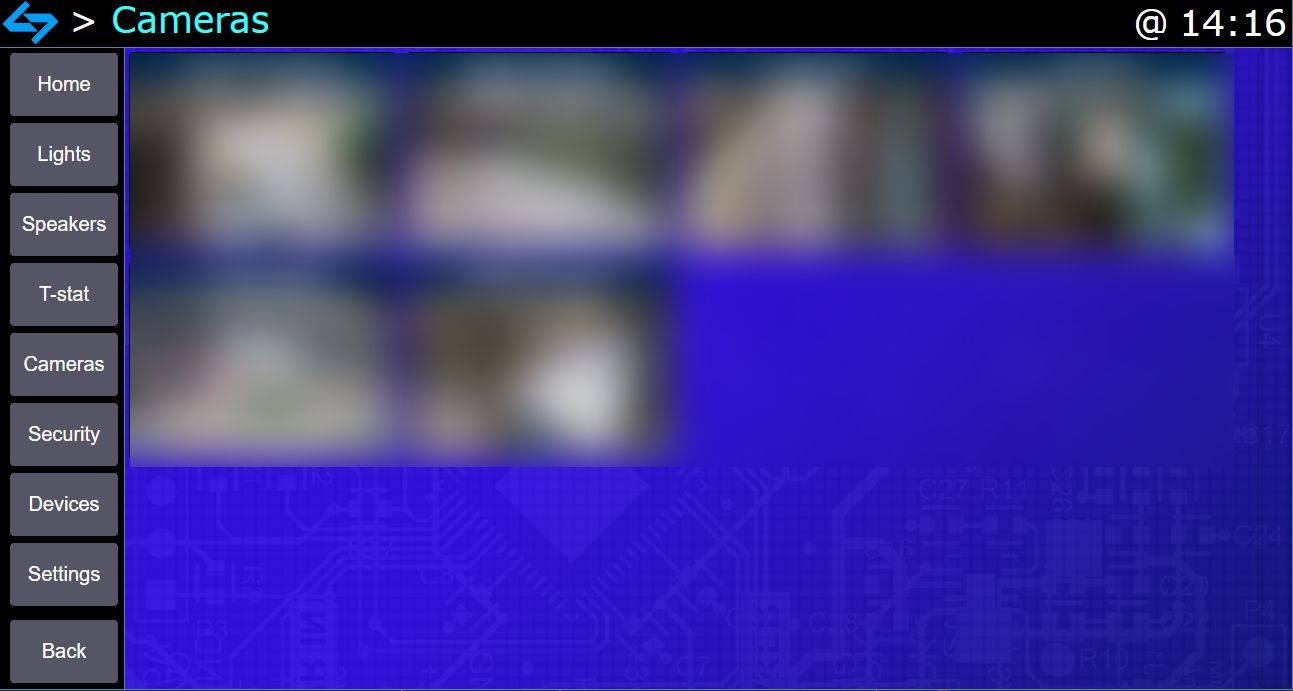
This worked… most of the time.
On a good day, all cameras would update every second or two, and everything looked great. On a bad day, images would freeze for 30 seconds or even several minutes — which always seemed to happen when I actually needed to see what was going on. Plus, it was pretty inefficient to make so many HTTP requests every second, and sometimes this could cause issues with DAX stability.
I realized I didn’t actually want to solve live camera streaming myself. This is a solved problem.
I was already running Frigate for NVR and object detection… so why not simply embed Frigate inside my DAX interface?
Problem: DAX and Frigate are on separate machines. Because of browser same-origin protections, you can’t embed a page from another host using an iframe without special accommodations.
To make this work, I needed to:
- Keep DAX as the primary web interface
- Route Frigate *through* DAX’s hostname
- Serve Frigate on a subdirectory ( `/frigate/` )
- Preserve WebSocket connectivity for live streams
The solution: a reverse proxy.
Frigate Configuration
Frigate provides an unauthenticated HTTP interface that is perfect for internal use behind a reverse proxy. In my `docker-compose.yml` for Frigate, I ensured port 5000 was exposed:
ports:
  - "8971:8971"  # authenticated HTTPS
  - "8554:8554"  # RTSP feeds
  - "5000:5000"  # unauthenticated HTTP (for reverse proxy)
I then updated my firewall so that only the DAX server can access port 5000 on the Frigate machine.
Desired Architecture
For example purposes, here’s the network layout:
- DAX: 192.168.1.50:8000 (HTTPS)
- Frigate: 192.168.1.70:5000 (HTTP, internal only)
What I needed:
- https://192.168.1.50:8000/ → DAX UI
- https://192.168.1.50:8000/frigate/ → Frigate UI
That way, I could embed Frigate using a simple iframe:
<iframe src="/frigate/" width="100%" height="100%"></iframe>
Notice the use of a subdirectory instead of a subdomain. This was important for simplicity, routing consistency, and future extensibility — but it introduces complexity because Frigate normally expects to live under `/`, not `/frigate/`.
This required special handling in the reverse proxy.
                      ┌───────────────────────┐
                      │       Browser         │
                      │  https://192.168.1.X  │
                      └───────────┬───────────┘
                                  │
                                  ▼
                      ┌────────────────────────┐
                      │         nginx          │
                      │   Reverse Proxy (SSL)  │
                      │      192.168.1.50      │
                      └───────┬───────────┬────┘
                              │           │
                        /     │           │   /frigate/
                              │           │
                              ▼           ▼
                 ┌────────────────┐   ┌──────────────────────┐
                 │   DAX Server   │   │    Frigate Server    │
                 │  192.168.1.50  │   │     192.168.1.20     │
                 │ CherryPy :8000 │   │  HTTP :5000 (Docker) │
                 └────────────────┘   └──────────────────────┘
From the browser’s perspective, everything appears to come from one single server, even though DAX and Frigate are running on separate machines.
nginx
I had never configured a reverse proxy before, so I asked my good friends ChatGPT and Gemini for help.
We first tried using my CherryPy server to proxy Frigate directly. After a few minutes of small changes to DAX's python core, I could load the homepage at `/frigate/`, but none of the WebSocket connections succeeded — meaning no live streams.
The better solution was to put nginx in front of DAX, letting nginx:
- Manage HTTPS
- Reverse proxy Frigate
- Handle WebSocket upgrades properly
- Serve Frigate under `/frigate/`
This also required no changes to the DAX python core, which was also very appealing.
This part took quite a bit of trial and error. I would:
1. Modify the config
2. Reload nginx
3. Test the UI
4. Paste errors into ChatGPT
5. Repeat...
After a few days of iteration, I finally landed on a working configuration where:
- `/` goes to DAX Web interface (CherryPy within DAX python core)
- `/frigate/` goes to Frigate
- All Frigate WebSockets and MSE streams function correctly
- All content loads securely over HTTPS
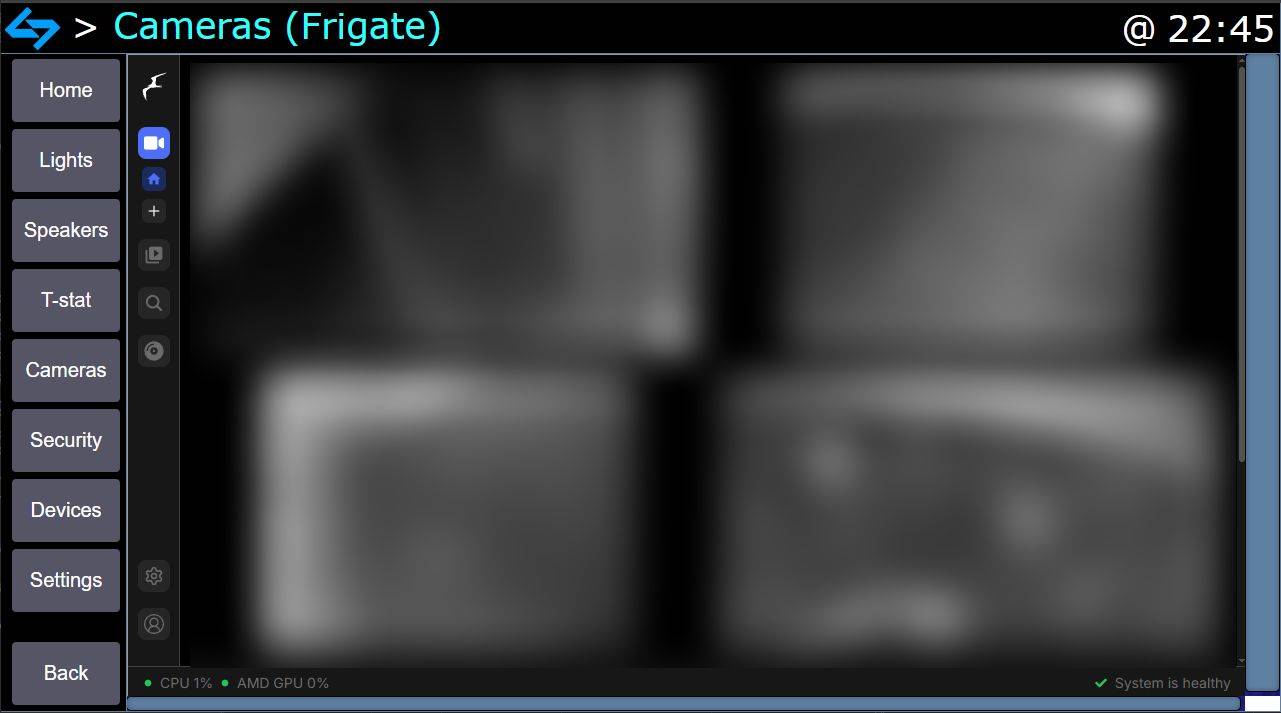
DAX now cleanly embeds Frigate into the UI as if it were a native module.
nginx config
1. Install nginx
sudo apt-get install -y nginx
2. Edit /etc/nginx/nginx.conf and insert code inside http { } block
sudo nano /etc/nginx/nginx.conf
    map $http_upgrade $connection_upgrade {
        default upgrade;
        '' close;
    }
3. Set up main configuration
sudo nano /etc/nginx/sites-available/home_automation
# make sure you add the following to nginx config
#  /etc/nginx/nginx.conf
#  in the http { } block

#     map $http_upgrade $connection_upgrade {
#        default upgrade;
#        '' close;
#    }


upstream frigate_server {
	# optional method to conveniently define frigate server host / port in a single place
	# you can delete this block and manually specify server in the places where "frigate_server" in blocks below
    server 192.168.1.20:5000;
}

## HTTP (80) redirects to HTTPS (443)
server {
    listen 80;
    listen [::]:80;

    server_name _;

    return 301 https://$host$request_uri;
}


server {
        listen 443 ssl;
        server_name home_automation;

	## SSL certificates
        ssl_protocols TLSv1.2 TLSv1.3;
        ssl_certificate     /etc/letsencrypt/live/DOMAIN_NAME/cert.pem;
        ssl_certificate_key /etc/letsencrypt/live/DOMAIN_NAME/privkey.pem;

	# ============================
	# FRIGATE REVERSE PROXY
	# ============================

	location = /frigate {
		return 301 /frigate/;
	}

	# ===== FRIGATE APP =====
	location /frigate/ {
		proxy_pass http://frigate_server/;

		proxy_http_version 1.1;
		proxy_set_header Host $host;
		proxy_set_header X-Forwarded-For $proxy_add_x_forwarded_for;
		proxy_set_header X-Forwarded-Proto https;

		proxy_set_header X-Ingress-Path /frigate;

		proxy_buffering off;
	}

	# ===== FRIGATE WS =====
	location /frigate/ws {
		proxy_pass http://frigate_server/ws;

		proxy_http_version 1.1;
		proxy_set_header Upgrade $http_upgrade;
		proxy_set_header Connection $connection_upgrade;

		proxy_set_header Host $host;
		proxy_set_header X-Forwarded-For $remote_addr;
		proxy_set_header X-Forwarded-Proto https;
		proxy_set_header X-Forwarded-Host $host;

		proxy_read_timeout 86400;
	}

	# ===== FRIGATE MSE =====
	location /frigate/live/mse {
		proxy_pass http://frigate_server/live/mse;

		proxy_http_version 1.1;
		proxy_set_header Upgrade $http_upgrade;
		proxy_set_header Connection $connection_upgrade;

		proxy_set_header Host $host;
		proxy_read_timeout 86400;
	}

	# ================== FRIGATE API ==================
	location ^~ /api/ {
		proxy_pass http://frigate_server/api/;

		proxy_http_version 1.1;
		proxy_set_header Host $host;
		proxy_set_header X-Forwarded-For $proxy_add_x_forwarded_for;
		proxy_set_header X-Forwarded-Proto https;

		proxy_buffering off;
	}

	# ============================
        # ====== DAX AUTOMATION ======
	# ============================

    location / {

        proxy_pass https://127.0.0.1:8000;
        proxy_http_version 1.1;

        proxy_set_header Host $host;
        proxy_set_header X-Real-IP $remote_addr;
        proxy_set_header X-Forwarded-For $proxy_add_x_forwarded_for;
        proxy_set_header X-Forwarded-Proto https;

        proxy_read_timeout 86400;
        proxy_send_timeout 86400;
    }

}
4. Check config and Reload nginx
sudo nginx -t

sudo ln -s /etc/nginx/sites-available/home_automation /etc/nginx/sites-enabled/
sudo rm /etc/nginx/sites-enabled/default

sudo systemctl reload nginx
That's it! Accessing the host https://192.168.1.50/frigate/ should now be successfully reverse proxying on that host, while the root https://192.168.1.50/ still points to the DAX web interface.
Page Tools
